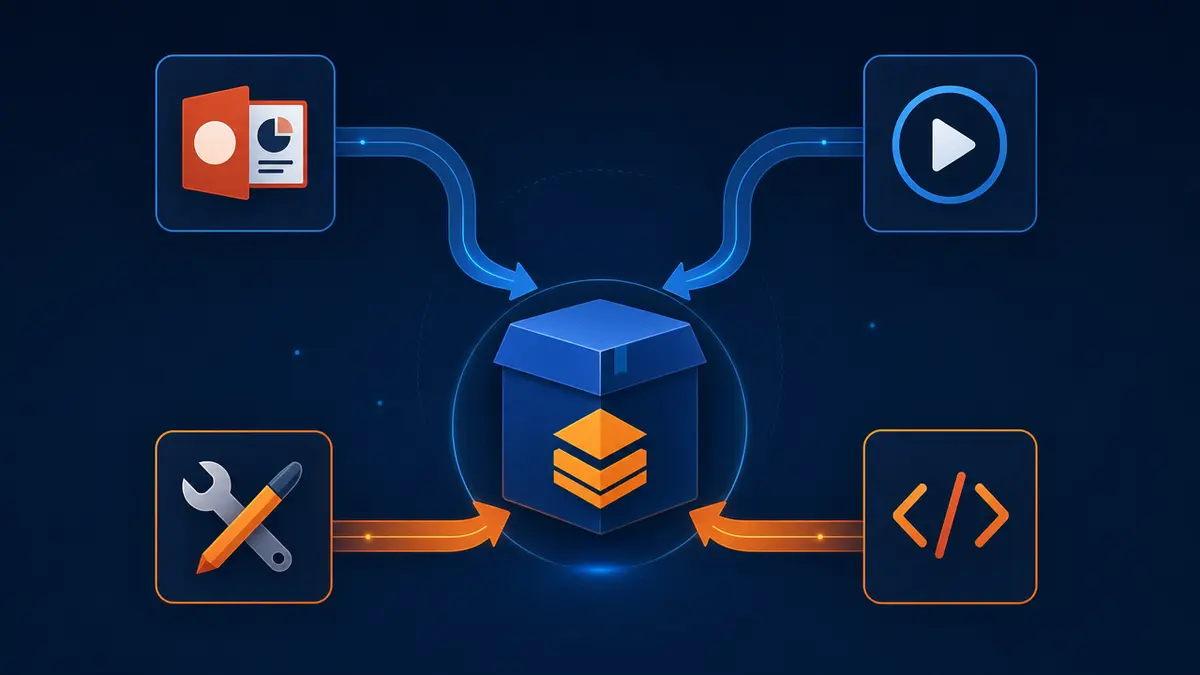
How to create a SCORM package starts with the format you already have. A PowerPoint deck becomes a SCORM package through a converter that wraps each slide as a SCO. A video turns into a SCORM package with a wrapper that tracks play, pause, and completion. An authoring tool like Storyline or Rise exports SCORM natively with a few clicks. Custom HTML needs a manifest, the SCORM API wrapper, and a zip.
How do I create a SCORM package from PowerPoint?
Run the PowerPoint file through a converter that wraps each slide in SCORM tracking and produces a zip. The converter adds an imsmanifest.xml, the SCORM API scripts, and packages the slides as HTML. You get back a zip your LMS can import.
We built a converter that does this in one step. Upload the .pptx, and it returns a SCORM 1.2 zip with each slide tracked as a separate page. Convert PowerPoint to SCORM is free for files under 50 slides.
If your slides have speaker notes, the converter can capture those as narration text. If they have animations or embedded video, a converter may flatten them, so check what survives the conversion before you upload the result to your production LMS.
| Tool | What it does | Output | Cost | Source |
|---|---|---|---|---|
| buildmacourse PPT to SCORM | Upload .pptx, get SCORM 1.2 zip | SCORM 1.2 | Free under 50 slides | buildmacourse.com |
| iSpring Suite | PowerPoint add-in, exports SCORM from within PowerPoint | SCORM 1.2, 2004 | Paid | iSpring |
| Adobe Captivate | Imports PowerPoint, adds quizzes and interactions, exports SCORM | SCORM 1.2, 2004, xAPI | Paid | Adobe |
PowerPoint alone cannot output SCORM. You need a tool that wraps it. The free path is to use a converter. The paid path is iSpring Suite, which lives inside PowerPoint and keeps animations and transitions intact through export.
How do I create a SCORM package from a video?
Wrap the video file in an HTML page that includes the SCORM API wrapper, then zip the result with a manifest. The wrapper script sends a "completed" status when the video reaches the end, plus the time watched and a score if you add a quiz.
Our free video to SCORM converter handles the wrapping. Upload an MP4, set the completion threshold (how much of the video the learner must watch), and it returns a SCORM 1.2 zip. You can also attach a quiz that appears after the video, and the score passes to the LMS.
If you build the wrapper yourself, the HTML page needs the video element, the SCORM API finder function, and a listener on the video's ended event that calls LMSSetValue for lesson status and LMSCommit. SCORM.com's run-time reference lists every LMSSetValue field you can write to. The manifest must point to the HTML page as the launch resource, and the imsmanifest.xml must sit at the root of the zip.
The manifest is essentially a list of all the resources in the content package. IMS uses a standard format for the manifest that makes it relatively easy for learning management systems to know what to do with the content.
SCORM.com, "SCORM 2004 Manifest Structure"
The zip must contain imsmanifest.xml at the root, the HTML file, the video file, and the SCORM API scripts. Any path mismatch between the manifest and the actual files will cause the LMS to reject the package.
How do I create a SCORM package from an authoring tool?
Click Publish, select LMS, pick SCORM 1.2 or SCORM 2004, set the reporting options, and export. The authoring tool builds the zip, the manifest, and the tracking scripts automatically. This is the most reliable path because the tool handles every detail of the SCORM specification.
In Storyline 360: Click the Publish button, choose the LMS tab, select SCORM 1.2 or SCORM 2004, and set the reporting pair under Reporting and Tracking. Articulate lists 4 pairs: Passed/Incomplete, Passed/Failed, Completed/Incomplete, and Completed/Failed. For SCORM score reporting, pick a Passed pair.
As Rustici Software's guide explains:
To create a SCORM package with Articulate Storyline 360, you need to publish the course to an LMS. During this process, you choose the version of SCORM you want to export, set various reporting options, and then Storyline builds the proper zip for you.
In Rise 360: Click Export, select LMS, choose SCORM 2004 (Rise does not export SCORM 1.2), and pick the completion tracking option. Rise offers Track using course completion or Track using quiz result. Set the passing score if you use a quiz. Export SCORM from Rise covers the settings step by step.
In Adobe Captivate: Go to Quiz Preferences, set Report to LMS to Pass/Fail or Percentage, and publish to SCORM 1.2 or 2004 under Output Format.
In iSpring Suite: Click Publish, select the LMS tab, choose SCORM 1.2 or 2004, set the reporting status, and export.
Every authoring tool asks the same 3 questions before export: which SCORM version, what triggers completion, and what passes to the LMS as the score. Answer those 3, and the tool builds the rest.
How do I create a SCORM package from custom HTML?
Write the HTML lesson pages, add the SCORM API wrapper script, write the imsmanifest.xml, and zip everything. This path gives full control over the course design but requires you to handle the SCORM API calls yourself.
The steps are:
- Build your course as HTML pages with any CSS and JavaScript you want.
- Add the SCORM API wrapper. SCORM.com's Golf Examples include a working
lms.jsfile you can adapt. The wrapper must find the LMS API, then exposeLMSSetValueandLMSGetValuefor your pages to call. - In your HTML, call the API at the right moments. Set
cmi.core.lesson_statusto "completed" when the learner finishes. Setcmi.core.score.rawwhen they pass a quiz. CallLMSCommitafter each write or the LMS may not record it. - Write the imsmanifest.xml. Declare the SCORM version, list each SCO with its launch file, and specify the mastery score if you use one. SCORM.com's manifest structure page lists the required elements.
- Zip the files with imsmanifest.xml at the root. The zip must not contain a parent folder.
Test the result in SCORM Cloud before uploading to your LMS. Sample SCORM packages has working examples you can unzip and study.
Which SCORM version should I export?
Export SCORM 1.2 unless your LMS specifically lists SCORM 2004 3rd or 4th Edition and you need something 1.2 cannot do. SCORM 1.2 is what SCORM.com calls "the industry workhorse" and it is supported by every major LMS.
| If your LMS is | Export this | Because | Source |
|---|---|---|---|
| Moodle | SCORM 1.2 | Core Moodle does not support SCORM 2004 | Moodle FAQ |
| TalentLMS | SCORM 1.2 or 2004 | Both are supported | TalentLMS help center |
| Canvas | SCORM 1.2 | Canvas supports SCORM 1.2 | Canvas instructor guide |
| Blackboard | SCORM 1.2 or 2004 | Both are supported | Blackboard help |
| Brightspace | SCORM 1.2 or 2004 | Both are supported | D2L community |
| Docebo | SCORM 1.2 or 2004 | Both are supported | Docebo help |
| SAP SuccessFactors | SCORM 1.2 or 2004 | Both are supported | SAP documentation |
The full list is in which SCORM version does each LMS support. Our guide on SCORM 1.2 vs SCORM 2004 explains the 4 cases where 2004 earns its place.
What are the most common mistakes when creating a SCORM package?
Most broken packages fail for one of 5 reasons. Each one is easy to catch before upload.
| Mistake | What happens | How to avoid it |
|---|---|---|
| imsmanifest.xml is not at the root, or the zip has a parent folder | The LMS rejects the zip | Zip the files, not the folder that holds them |
| A path in the manifest does not match a real file | The LMS rejects the package | Check every path in the manifest against the unzipped files |
No LMSCommit after a write | The LMS may not record the status or score | Call LMSCommit after each LMSSetValue |
| The SCORM version does not match the LMS | The course may load but not track | Export SCORM 1.2 for Moodle. Rise exports SCORM 2004 only |
| A Completed pair when you need a score | A learner who passes shows as completed, not passed | In Storyline 360, pick a Passed pair |
The fastest catch for all 5 is a test run in SCORM Cloud before your LMS sees the file.
What should I check before uploading the package?
Test the zip in SCORM Cloud first. Import it, launch it, complete the course, and check the results. SCORM Cloud shows exactly what the package reports. It is free and takes under 3 minutes.
Then unzip and check 3 things: imsmanifest.xml is at the root, every path in the manifest matches a real file, and no file sits inside a parent folder inside the zip. Our guide on how to upload a SCORM package to any LMS walks through the full import process.
After upload, launch the course as a test learner in your LMS. Complete the quiz. Open the LMS report and verify the score, status, and time appear. If the score does not show, our guide on SCORM score not passing to LMS covers the fix. If the package still fails in your LMS, we check one package free for companies and tell you what is wrong: get the free SCORM fix.
Got training decks to turn into lessons? We turn one PowerPoint into an interactive SCORM lesson with a quiz, free for companies. See how it works.
Other questions
Can I create a SCORM package for free?
Yes. Use our free PowerPoint to SCORM or video to SCORM converters. For custom HTML, the SCORM specification is free and the Golf Examples from SCORM.com give you working API wrappers to copy.
Does Google Slides export to SCORM?
Not directly. Download the slides as PowerPoint (.pptx) from Google Slides, then run the .pptx through a PowerPoint to SCORM converter.
Can I make a SCORM package without an authoring tool?
Yes. Write the HTML, add the SCORM API wrapper, write the manifest, and zip it. This is the custom HTML path above. It takes longer but costs nothing and gives full control.
Does my SCORM package need to be one zip or can I upload the files separately?
One zip. Your LMS expects a single .zip file to import. Unzipped folders and individual files will be rejected.