
To upload a SCORM file to Canvas, click SCORM in Course Navigation, click Upload, select the zip, choose graded assignment, ungraded assignment or page from the Choose Import Type menu, and click Go. The SCORM link exists only after the SCORM LTI has been enabled in External Apps at the account level, and Instructure's guide sends administrators to Canvas Support for that. Pick the import type before you click Go: it is permanent, and an ungraded assignment is not added to the gradebook.
Canvas supports SCORM 1.2 and SCORM 2004 2nd, 3rd and 4th Edition. Which SCORM version does each LMS support covers which one to export.
Why is there no SCORM link in your Canvas course?
2 switches decide whether the SCORM link shows up: the SCORM LTI for the whole account, and the SCORM link in your course's navigation.
The account switch comes first. Instructure's guide says the SCORM LTI "must be enabled in External Apps at the account level before it can be used in courses", then adds: "If you are an administrator, please contact your Canvas Support for assistance."
As of 9 October 2026, this page found no Admin Guide entry that walks through the switch. If you are a teacher, your first message goes to your Canvas admin, and your admin's may go to Canvas Support.
The course switch is yours. Canvas treats SCORM as an LTI link, and a disabled LTI link "won't appear in navigation".
The video transcript on the Course Navigation guide adds that a disabled or hidden external tool link "is hidden to all course users, including instructors". You will not see a disabled SCORM link in your own navigation either.
To turn the SCORM link on, click Settings in Course Navigation and open the Navigation tab. Find SCORM in the Drag items here to hide them from students section, click its Options icon and choose Enable, or drag it out of that section, then click Save.
2 places do not offer SCORM at all. SCORM "is not available in beta or test environments of Canvas". And Canvas Lite, the no-cost version individual educators sign up for themselves, marks "SCORM (Assignments)" as not available.
Instructure's LTI migration page lists SCORM among the Instructure-owned apps on its roadmap to LTI 1.3. Full deprecation of LTI 1.1 and 2.0 "will not happen before December 2027", and the migration page promises finalized plans later without saying what changes for SCORM users.
How do you upload a SCORM file to Canvas?
Check the zip and the course first, then run 5 steps inside the course.
Before you upload:
- Check the version. SCORM 1.2, or SCORM 2004 2nd, 3rd or 4th Edition; the guide lists no other versions.
- Keep it a zip. Instructure's guide describes uploading "SCORM ZIP files", so upload the exported zip, not a folder.
- Ask about storage. No SCORM guide gives a file size limit. Admins set a default storage quota for each course on the account's Quotas tab, but the quotas guide never mentions SCORM. Whether a package counts against your course quota is not stated.
Then, in the course:
- In Course Navigation, click the SCORM link.
- Click Upload, select the file from your computer and click Open. Instructure's 2021 announcement on signed launch links warned that "The upload process may take several minutes."
- Click the Choose Import Type menu and select graded assignment, ungraded assignment or page.
- Click Go.
- Click the Assignment icon to open the item and edit its details. A graded or ungraded import also appears on the Assignments Index page, where you can move it into an assignment group and add it as a module item. A page import appears on the Pages Index page and can go into a module too.
If the content does not load right after import, the guide says "your LTI tool may need to be reconfigured", which is work for your Canvas admin.
If you import SCORM files from Commons, the guide says to make sure SCORM "is configured correctly in the target course" first, so the references "remain valid and functional after the import".
Which import type should you pick in Canvas?
Pick graded assignment if anyone needs a grade from the package. An ungraded assignment "is not added to the gradebook", the page guide says nothing about grades, and you cannot switch the type later.
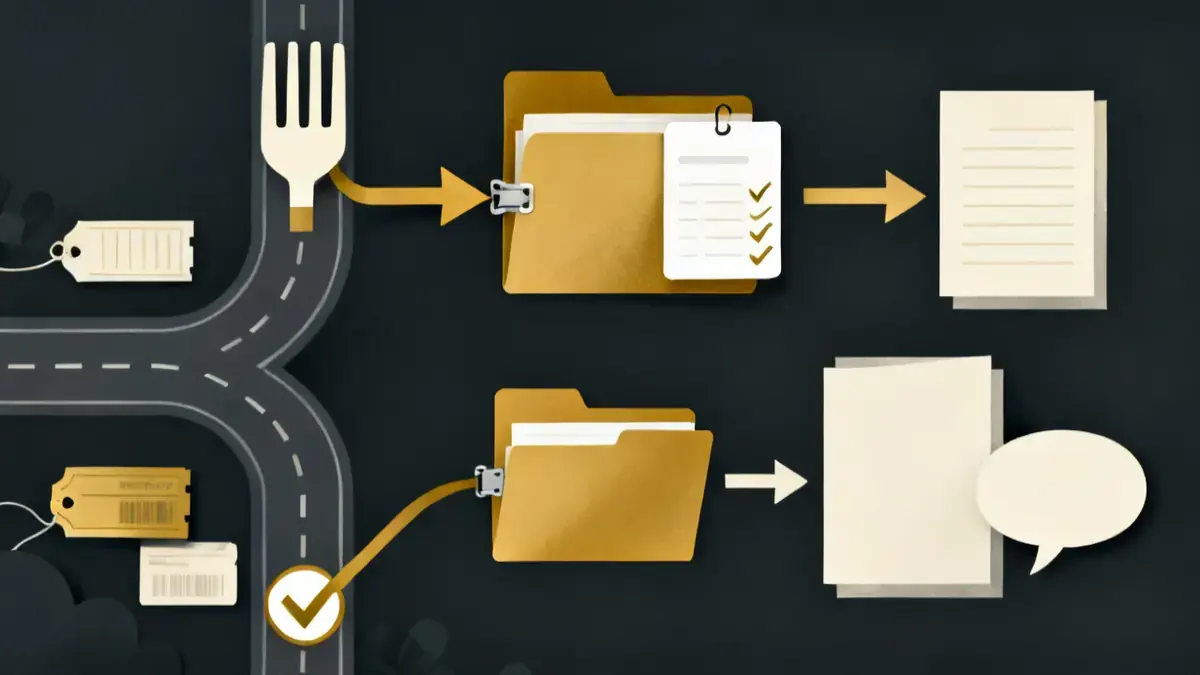
The import type selected when importing a SCORM file is permanent and cannot be changed in Canvas. If a SCORM file is uploaded as an ungraded assignment, the assignment is not worth points, the assignment is not added to the gradebook, and students cannot earn a grade for the assignment.
Instructure, Canvas LMS Instructor Guide, "How do I import SCORM files as an assignment?"
Canvas imports the package as an External Tool Assignment submission. Instructure's 2021 announcement lists the first option as "Import as a graded assignment (with grade passback)". The assignment guide says all SCORM uploads default to 100 points possible, and that an ungraded import is not worth points.
The Pick it when column below is this page's judgment, not Instructure's advice.
| Import type | What Canvas does | Pick it when | Source |
|---|---|---|---|
| Graded assignment | Adds an assignment, 100 points possible by default, listed on the Assignments Index page, described as having grade passback | The training is required, or someone will ask for a score | Assignment guide; Product Blog |
| Ungraded assignment | Adds an assignment that is not worth points, is not added to the gradebook, and cannot earn a grade | Practice content where nobody needs a record | Assignment guide |
| Page | Adds a course page, listed on the Pages Index page, that you can add as a module item | Reference material that should sit inside a course page, when you do not need a grade | Page guide |
Neither SCORM guide says how a package's raw score, its passed or failed status, or a mastery score in its manifest becomes Canvas points. Preview gives you one clue: the assignment preview shows a No Score label until you complete the package in preview mode, and then the display "changes to reflect an earned score". The page guide describes no score label for a page preview.
If your package reports completion and no score, test before you promise a grade; the guides do not say what Canvas records then.
Why is a SCORM assignment not loading or grading in Canvas?
Start with the exact message on your screen. Instructure's guide names 2 signed launch link problems and warns about a delete trap that looks like a bug.
| What you see | What it means | Fix | Source |
|---|---|---|---|
| No SCORM link in Course Navigation | The SCORM LTI is off for the account, or the link is disabled in your course | Ask your admin about External Apps at account level; enable SCORM in Settings, Navigation, then Save | Assignment guide; Course Navigation guide |
| The content does not load right after import | The LTI tool "may need to be reconfigured" | Ask your Canvas admin | Assignment guide |
| "ApiUseSignedLaunchLinks is true, but link was not signed" | The package "is not updated to require signed launch links" | The guide gives no fix steps. The 2021 announcement does not name this message, but it told users with direct links to the content to upload the package again through the SCORM link; ask your admin first | Assignment guide; Product Blog |
| "Token has expired" or "Player could not load" | The package is not updated for signed launch links and someone used a copied launch link; those links "are only valid for a few seconds" after they are first requested | Open the content from Canvas each time, never from a saved or shared link | Assignment guide |
| An error when you click the Assignment icon | The assignment was deleted from the Assignments page, but the SCORM page still lists it | Delete it from the SCORM page, which also deletes it from "all other applicable Canvas locations" | Assignment guide |
| No grade in the gradebook | The file went in as an ungraded assignment, which "is not added to the gradebook"; the page guide does not say whether a page is graded | The type cannot be changed, and the guides describe no way around that; uploading the package again as a graded assignment is this page's inference, so try it in a test course first | Assignment guide; Page guide |
| No SCORM link in a beta or test instance | SCORM is not available there | Test in production, in a course your students cannot see | Assignment guide |
| A SCORM link pasted into a page or assignment description stops working | Since signed launch links arrived, only users enrolled in the course where the package was uploaded get access | Add the package through the SCORM link instead of pasting links to it | Product Blog |
If your package plays for you and shows a blank frame for one learner in one browser, check the browser next. How to fix a SCORM package blocked in Safari or Chrome walks through the causes.
What do Instructure's guides not say?
As of 9 October 2026, Instructure's SCORM guides leave 4 questions open.
- File size. Neither SCORM guide states a limit. Ask your admin for the course quota.
- xAPI, cmi5 and AICC. The assignment guide lists SCORM 1.2 and SCORM 2004 editions only, and nothing in it says the SCORM tool plays an xAPI, cmi5 or AICC export.
- The mobile apps. No Instructure page found for this article says how SCORM content behaves in the Canvas mobile apps. If your learners use phones, test on a phone.
- Replacing a package. The guides describe Upload, Preview, Reset and Delete, and no way to swap a new zip into an existing item. Whether a fixed version keeps the old grades is not stated. After any second upload, check the SCORM page and delete what you no longer need from there.
How do you test in SCORM Cloud and Canvas Preview?
Test your package in 2 places: SCORM Cloud first, to see what it reports, then Canvas Preview inside the live course.
Rustici Software offers SCORM Cloud as a free trial for testing, and Rustici's testing page gives no trial length. Rustici's own help article calls SCORM Cloud "probably the friendliest, most accepting SCORM player out there", and adds: "If your content doesn’t work in SCORM Cloud, it is probably not going to work in your LMS either." A pass in SCORM Cloud is not proof of conformance, though: "Cloud does not check for strict technical conformance".
Then, in Canvas, click the Preview icon. The assignment preview shows the files the way they appear for students, with a No Score label until you complete the package, after which the display reflects an earned score.
Click Reset to clear your test and Done to close the window. Instructure's 2021 announcement adds another check: reload the page or assignment when you are not in edit mode.
Because SCORM does not run in beta or test environments, you test the package in your production Canvas. Ask your admin for a course your students cannot see.
The Moodle upload guide lays out a full test routine, and free sample SCORM packages report a known result, so you can tell a Canvas problem from a package problem.
Preview does not show what a student's gradebook row will hold, and the guides describe no student test.
How do you take a package from zip to gradebook?
You need a teacher role in the course, your Canvas admin for the account switch, a SCORM Cloud trial account, and a colleague enrolled as a student.
- Ask your admin whether the SCORM LTI is on in External Apps at the account level. If the SCORM LTI is off, Instructure's guide sends your admin to Canvas Support.
- Enable SCORM in your course: Settings, Navigation tab, Enable, Save.
- Run the package in SCORM Cloud and note what it reports: completion, pass/fail, score.
- Decide the import type using the table above. The type is permanent.
- Upload it: SCORM, Upload, Open, Choose Import Type, Go.
- Place it: assignment group and module item. Check the points, which start at 100.
- Preview it to the end, check the earned score, then click Reset.
- Run 1 real attempt as the student and open the gradebook. This step is this page's advice; the guides stop at preview.
This is where a first upload can stall. Your package plays in Preview and you sign off, but the gradebook column never appears. The file went in as an ungraded assignment, which "is not added to the gradebook".
The type cannot be changed, and the guides describe no way around that. Uploading the package again as a graded assignment, then deleting the old item from the SCORM page, is this page's inference, so try that route in a test course first.
| Task | Who can do it | Rough time |
|---|---|---|
| Account switch (step 1) | Canvas admin, possibly with Canvas Support | Not stated in Instructure's guide; ask before you set a launch date |
| Course link and SCORM Cloud run (steps 2 and 3) | Teacher | 20 to 30 minutes |
| Upload, import type and placement (steps 4 to 6) | Teacher | 10 to 15 minutes, plus upload time |
| Preview and student attempt (steps 7 and 8) | Teacher and 1 student account | 20 to 40 minutes for a short course |
These are working estimates for one short package, not Instructure figures.
What trips people up in Canvas?
- Choosing the wrong import type. The type is permanent, an ungraded assignment is not added to the gradebook, and the page guide says nothing about grades.
- Deleting from the Assignments page. The SCORM page keeps the item and opening it throws an error; delete from the SCORM page instead.
- Pasting a direct link to the content. Signed launch links tie access to the course where the package was uploaded, and a copied launch link from an unsigned package expires within seconds.
- Planning the test in beta or test. SCORM is not there.
A SCORM course that won't complete? Send it to us. We fix one course free for companies, or tell you why it fails, within 48 hours. See the free SCORM fix.
Other questions about SCORM in Canvas
Does Canvas support SCORM 2004?
Yes: SCORM 2004 2nd, 3rd and 4th Edition, plus SCORM 1.2, once the SCORM LTI is enabled for the account.
Does Canvas support xAPI through the SCORM tool?
Instructure's SCORM guide names only SCORM 1.2 and SCORM 2004 and does not mention xAPI. Do not assume an xAPI export will play in the SCORM tool.
Can I change a SCORM import from a page to a graded assignment?
No. Instructure's guide says the import type is permanent and cannot be changed in Canvas.
Why does my SCORM assignment say 100 points?
All SCORM uploads default to 100 points possible. Instructure's guide does not say how the package's own score maps onto those points.
Can I use SCORM in Canvas Lite or a test instance?
Not according to Instructure's pages. Canvas Lite's comparison table marks "SCORM (Assignments)" as not available, and the guide says SCORM is not available in beta or test environments.